
- Home
- About Us
- Solutions
CMMs
- Bridge CMMs
- Gantry CMMs
- Shop Floor CMMs
Portable Measuring Arms
- Absolute Arm 7 Axis
- Absolute Arm 6 Axis
- Absolute Arm Compact
- Resources
- Industries
- Contact Us

Experience innovation redefined. With AI-powered tools and performance-driven upgrades, SOLIDWORKS 2026 transforms the way you create, collaborate, and bring ideas to life.
Vermeer: Equipped to Do More® — Powered by SOLIDWORKS
For decades, Vermeer Corporation has relied on SOLIDWORKS to design and perfect its world-class industrial and agricultural machines. From self-propelled balers and stump cutters to utility drills and pipeline trenchers, Vermeer uses SOLIDWORKS design, simulation, and data management tools to bring durable, high-performing equipment to life.
Watch how Vermeer accelerates innovation and delivers powerful machines with SOLIDWORKS.
Accelerate innovation with SOLIDWORKS 2026.
Packed with hundreds of user-inspired enhancements, performance upgrades, and AI-powered tools, this release empowers you to design faster, collaborate smarter, and manage data more efficiently across every stage of product development.
SOLIDWORKS Design
Design faster and smarter with SOLIDWORKS 2026.
Discover a new era of 3D design with enhancements across parts, assemblies, drawings, and user experience. Powered by AI, SOLIDWORKS 2026 helps you save time, reduce manual effort, and achieve greater accuracy with automated drawing generation, smarter assembly rebuilds, faster sketching, advanced sheet metal tools, easier Physical Product setup, improved offline mode, and a cleaner, more intuitive interface.
Watch the video to see these powerful design tools in action.
Smarter Collaboration and Data Management
Connecting to the 3DEXPERIENCE® platform is now easier than ever with SOLIDWORKS 2026.
Experience seamless collaboration and improved data control through powerful new features — including the AURA AI-powered virtual companion, integrated Excel file management for design tables, and direct data sharing from your SOLIDWORKS interface.
Watch the video to explore these new collaboration tools in action.
Work Smarter on Large Assemblies
Simplify your workflow by opening only the sections of your design structure you need directly from the 3DEXPERIENCE® platform. Visualize component relationships, apply advanced filters to locate specific parts, and save your filter views for quick access in SOLIDWORKS Design.
Boost team productivity by enabling multiple designers to work on the same large assembly simultaneously — without conflicts or delays.
Shop Floor Programming—Now Included in SOLIDWORKS Design
Unlock new manufacturing possibilities with SOLIDWORKS 2026.
Shop Floor Programmer is now included with SOLIDWORKS Design licenses, providing manufacturers and designers with powerful, cloud-connected tools to streamline machining operations, optimize fabrication workflows, and bridge the gap between design and production.
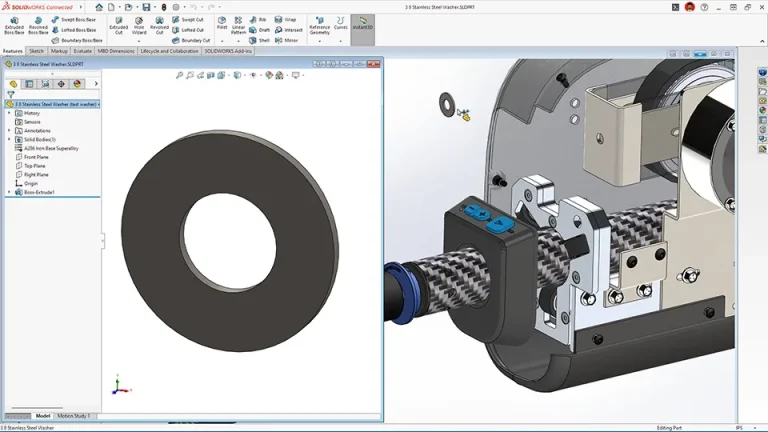
Did you know the annual SOLIDWORKS release is just one of five major Functional Delivery (FD) updates issued each year?
While SOLIDWORKS 2026 brings hundreds of powerful enhancements, even more capabilities were introduced earlier this year through the 2025 FD releases.
SOLIDWORKS continues to evolve with new features and performance upgrades every ten weeks—keeping your design tools faster, smarter, and more connected than ever.
Watch the videos to explore top 2025 updates for parts, assemblies, drawings, user experience, and collaboration tools. Want to learn more or share feedback? Visit the Design Enhancements page to discover past releases and suggest improvements to the R&D team.
Top 2025 Parts & Assemblies Enhancements (FD01–03)
Get ready for SOLIDWORKS 2026 by exploring the most impactful parts and assemblies enhancements introduced in 2025. Discover how these updates improve performance, streamline workflows, and set the stage for the next generation of design innovation.
Top 2025 Drawings Enhancements (FD01–03)
Prepare for SOLIDWORKS 2026 by exploring the top drawing enhancements introduced in 2025. Experience smarter detailing, faster updates, and new tools that make technical documentation more efficient and precise than ever.
Top 2025 UX Enhancements (FD01–03)
Get ready for SOLIDWORKS 2026 by discovering the top user experience enhancements introduced in 2025. Enjoy a smoother, faster, and more intuitive design environment built to maximize productivity and creativity.
Top 2025 Collaborative Features (FD01–03)
Get ready for SOLIDWORKS 2026 by exploring the top collaborative features introduced in 2025. Experience seamless teamwork, smarter data sharing, and enhanced connectivity that bring designers and engineers closer than ever before.
What’s New in SOLIDWORKS PDM – Increase Data Efficiency
Boost your team’s productivity and data security with the latest enhancements in SOLIDWORKS PDM 2026. Work seamlessly across multiple devices with synchronized vault views, prevent data loss, and stay organized with smarter workflow archiving and enhanced folder access control.
Highlights include:
What’s New in SOLIDWORKS Simulation – Ensure Performance and Accuracy
Achieve higher precision and control in your engineering analyses with the new features of SOLIDWORKS Simulation 2026. Enjoy improved structural, thermal, and plastic simulations with enhanced accuracy and up to 30% faster performance. From advanced beam load definitions to automatic thermal gap filling, these updates empower engineers to design smarter and validate faster.
Highlights include:
What’s New in SOLIDWORKS Electrical – Streamline Electrical Design
Accelerate your electrical design process with the latest innovations in SOLIDWORKS Electrical 2026. Improve design accuracy, boost documentation quality, and enhance workflow flexibility with smarter tools for managing accessories, exporting PDFs, and importing manufacturer data.
Highlights include:
What’s New in DraftSight 2026 – Save Time on 2D Drafting
DraftSight 2026, developed by the makers of SOLIDWORKS, takes 2D CAD design to the next level with smart enhancements focused on speed, precision, and productivity. The new updates make it easier than ever to manage projects, collaborate efficiently, and turn ideas into accurate 2D documentation.
Highlights include:
 by
2B Digital
by
2B Digital


Delivering Digital Manufacturing Solutions since 2000

All Rights Reserved | 2B DIGITAL © 2025
جميع الحقوق محفوظة | 2B Digital © 2025
صمم بواسطة Thinkadv